

Apple Watch Face: Best Ways to Display Steps on Apple Watch Face in 2026
July 2026 is a great time to rethink your Apple Watch face, especially if you want your daily step count visible at a glance instead of hiding inside menus. Apple gives you powerful customization through watch faces and complications, but it still doesn’t offer a native “steps” complication, which is why most users rely on a dedicated steps app like Duffy to show their count on the main screen. In this guide, you’ll learn how to see steps on Apple Watch face, which faces work best, which apps to use, how Apple Health affects your step total, and how to fix common issues when the number doesn’t update correctly.
Introduction: Why Showing Steps on Apple Watch Face Matters
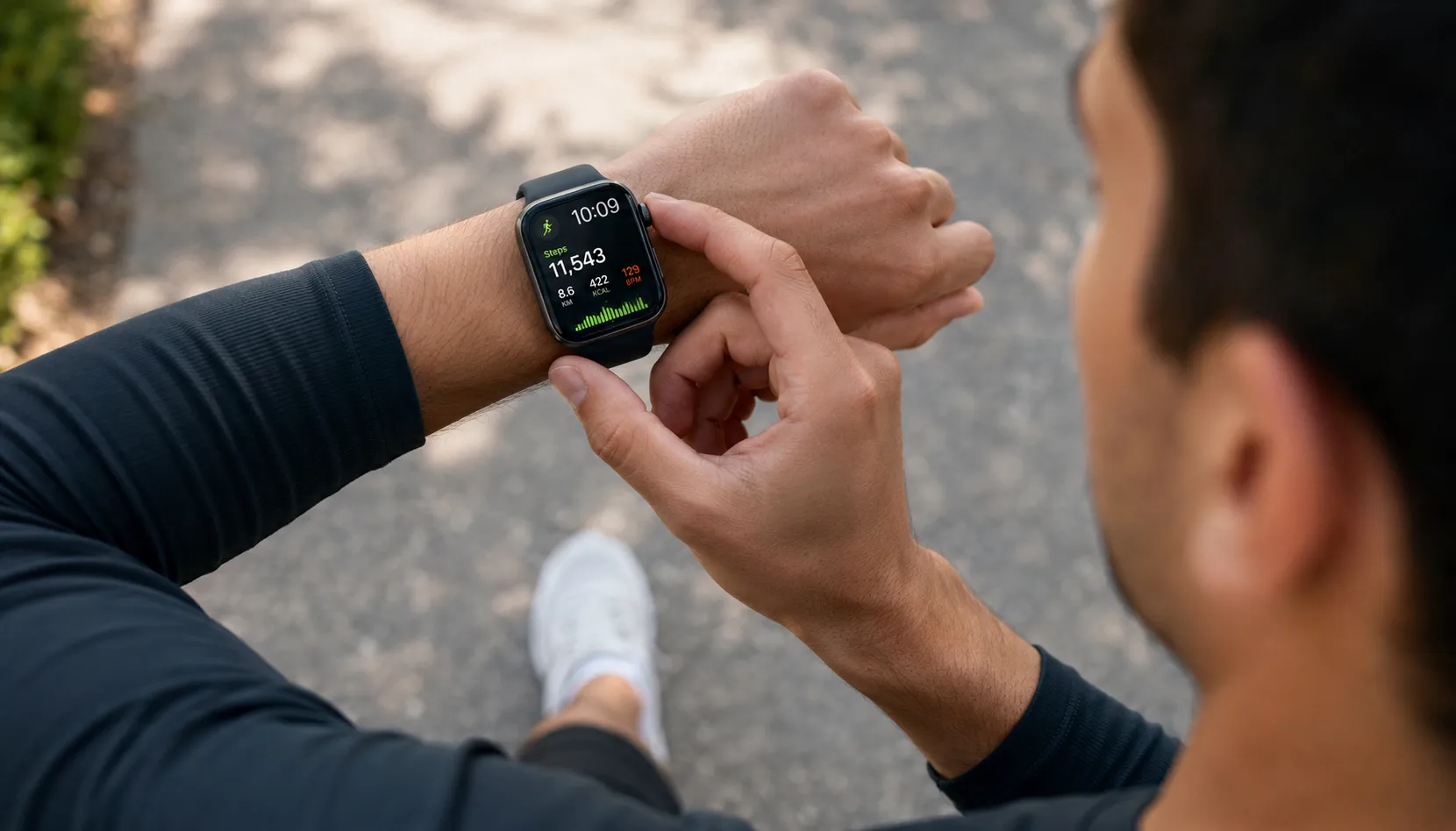
For many Apple Watch owners, steps are one of the most important daily metrics, especially if they walk for fitness, track movement goals, or follow step‑based challenges with friends and family. While Apple’s Activity rings show broad progress, they don’t give you a simple numeric step total on the face by default, which leads users to open the Fitness or Health apps several times a day just to check their count. That extra friction is exactly what a step complication solves: you glance at your watch to see the time and instantly see today’s steps right beside it.
The good news is that Apple supports third‑party complications on many watch faces, and these complications can read Apple Health data safely and securely, including your step count, walking distance, flights climbed, and more. The missing piece is an app that bridges Health and your watch face, which is why solutions like Duffy have become popular among people searching for “Apple Watch steps on watch face” and “display steps on Apple Watch face” in recent months. Once you set everything up, the experience feels almost native: steps update through the day, you can tap the complication to open the app, and your main face becomes a compact dashboard for movement, weather, workouts, and more.
How Apple Watch Complications Work for Step Count
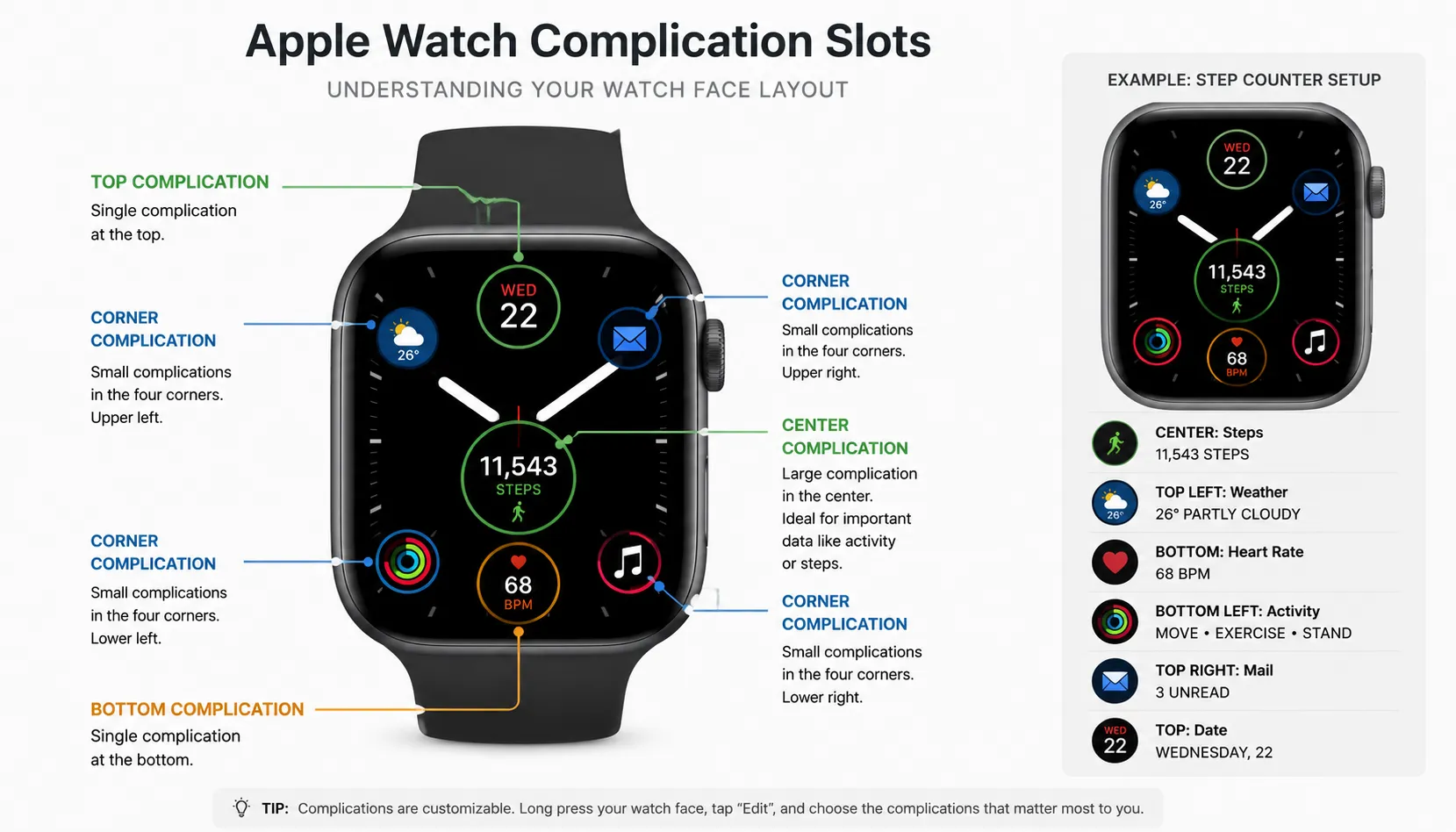
Apple uses the term “complication” to describe small data widgets on the watch face that show information from apps—such as Activity rings, heart rate, calendar events, or temperature—without needing to open the full app. Each supported watch face offers a different layout of complication slots (corners, center, top/bottom bars, etc.), and you can assign either Apple’s own complications or third‑party ones to these slots depending on your needs. This system is what makes Apple Watch face customization so flexible: you can build a health‑centric face, a productivity face, or a hybrid layout that mixes everything together.
However, Apple has never shipped a built‑in “Steps” complication that simply shows today’s step total on the face in the same way it shows rings or heart rate. Steps are stored inside Apple Health, and while the Fitness and Activity experiences integrate that data, the actual complications focus on rings, workouts, and summaries rather than a raw step number. That design decision creates the current situation: people who want Apple Watch steps on watch face usually install a third‑party app like Duffy or another pedometer app that exposes a dedicated steps complication. Once enabled, this complication reads Health data and places your daily steps into whatever slot you choose on a compatible watch face.
How to See Steps on Apple Watch Face Using Complications
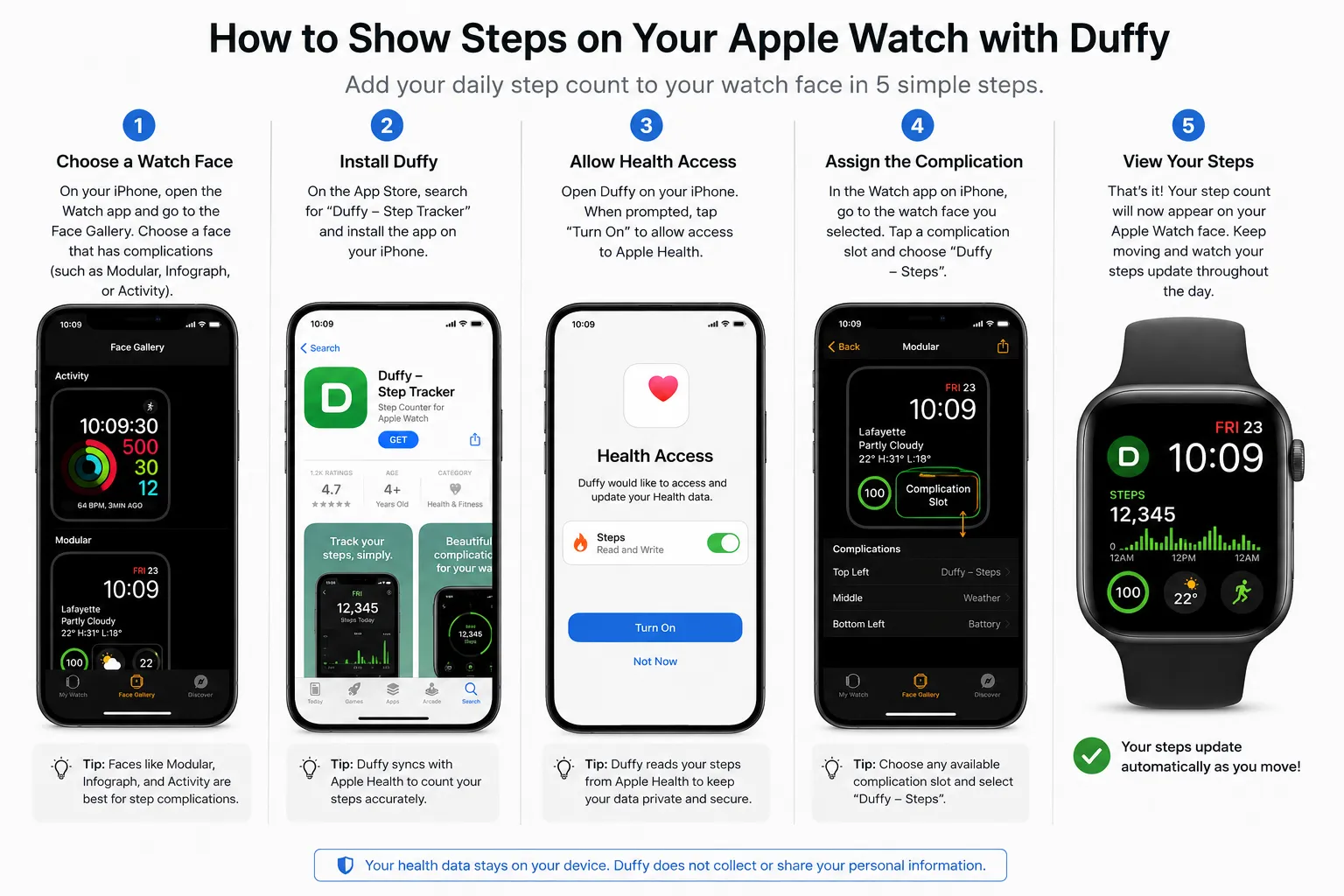
The most practical method to display steps on Apple Watch is straightforward: pick a watch face with complications, install a steps app that supports Apple Watch, and assign its complication to a slot. Apple’s official support guide explains that you can touch and hold the current face, tap Edit, swipe to the complications page, tap a slot, and then choose from the list of available complications from both Apple and third‑party apps. Here is a step‑by‑step walkthrough using that process:
- Choose a complication‑enabled watch face
On your Apple Watch, press and hold the current face, then swipe to browse other faces; pick one like Modular, Infograph Modular, or other faces that clearly show multiple complication slots. If a face has no complication options during editing, it isn’t suitable for showing steps and you should select a more data‑friendly design. - Install a steps app with Apple Watch support (e.g., Duffy)
On your iPhone, open the App Store and search for “Duffy – Steps Complication.” Duffy’s listing explicitly describes it as a steps complication for Apple Watch, and it is free, open, and designed to show your step count directly on the face. - Confirm the watch app is installed
Open the Watch app on your iPhone, scroll to the “Available Apps” section, and make sure Duffy is installed on your Apple Watch (not just on your phone). Tap “Install” if you see it listed as available but not yet active on the watch. - Grant Motion & Fitness / Health access for steps
Launch Duffy on your iPhone or Apple Watch the first time and allow it to read your Health data, including Step Count, Walking + Running Distance, and related motion metrics. Without this permission, it cannot display steps. - Assign the steps complication to the watch face
On the watch, press and hold the face, tap “Edit,” then swipe to the complications screen. Tap the slot where you want your step count (e.g., bottom bar, center, or a corner), turn the Digital Crown to scroll through available complications, and pick the Duffy steps complication. - Tap the complication to refresh or open the app
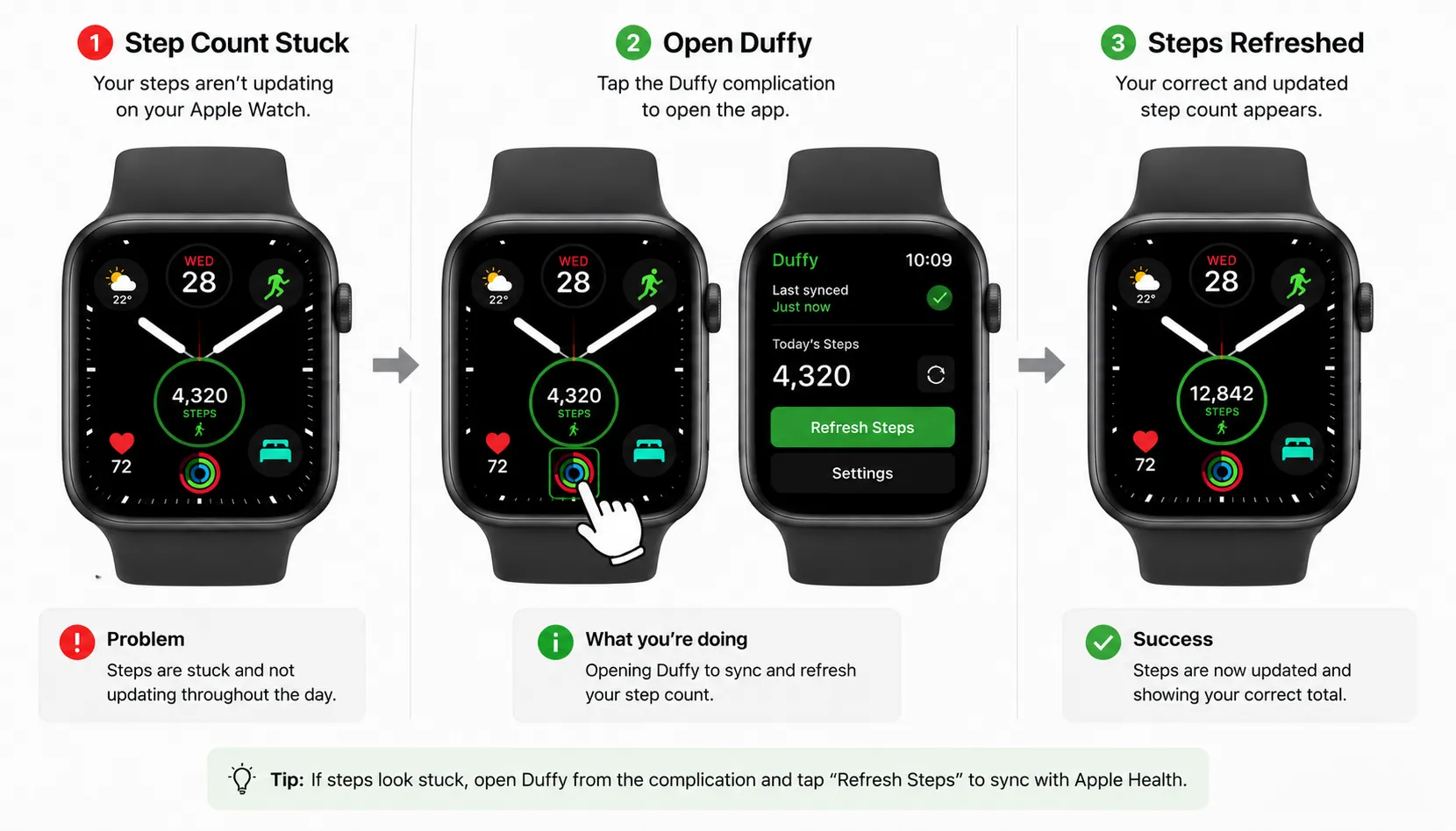
As you walk through the day, your step count updates periodically. If the number looks slightly behind, tapping the complication opens Duffy on the watch and usually forces an immediate refresh from Apple Health.
After this setup, your step total appears in the same glance as time, weather, rings, or heart rate, solving the classic problem of juggling multiple menus just to check progress. For AI Tech Unboxed readers, this workflow hits the sweet spot: it’s simple enough for beginners, yet flexible enough for power users who like optimizing their watch face for daily health and productivity.
Best Watch Faces for Apple Watch Steps on Watch Face
Not all Apple Watch faces are equally helpful when your goal is clear step visibility. Apple’s official “Apple Watch faces and their features” guide shows that each face has different limits on the number, size, and position of complications. Modular‑style faces typically offer a large central data area plus smaller corners, while Infograph‑style faces support multiple full‑color complications, making them ideal for combining steps with other health stats.
Here are some of the best choices if step count is a priority:
- Infograph Modular
Designed for rich, full‑color complications, Infograph Modular gives you a large center slot plus several smaller positions. This makes it perfect if you want a bold numeric step count in the middle, surrounded by Activity rings, heart rate, or weather in the corners. - Modular / Modular Compact
The Modular and Modular Compact faces let you choose up to three complications alongside a digital or analog dial, giving you enough room for steps, Activity, and one or two more metrics such as UV Index or Workout. - Other data‑centric faces
Faces in Apple’s catalog that explicitly mention multiple complications and rectangular data areas are generally better for steps than purely decorative or minimalist faces, which limit how much information appears.
Minimalist designs like Simple or Typograph can look elegant, but they either reduce complication slots or push them to smaller corners, making a step counter harder to see at a glance. If your main focus is walking, calorie burn, and daily movement, a data‑friendly face usually delivers more real‑world utility than a purely aesthetic layout.
Table: Recommended Apple Watch Faces for Step Complications
| Watch face | Complication capacity | Why it’s good for steps |
|---|---|---|
| Infograph Modular | Large center + multiple corners | Big numeric step count plus rich extra data. |
| Modular / Modular Compact | Up to three complications + time | Balanced layout for steps, Activity, weather. |
| Other multi‑slot faces | Several small complication areas | Enough slots to combine steps with health stats. |
Image suggestion: Side‑by‑side screenshot comparison of Infograph Modular, Modular, and a minimalist face, with the step complication highlighted on the first two.
Alt text: Comparison of Infograph Modular and Modular faces showing step complication versus a minimalist face with fewer slotsBest Apps to Display Steps on Apple Watch Face
While Duffy is currently one of the most popular solutions for showing daily steps directly on the Apple Watch face, it is not the only app capable of reading Health data and providing a complication. Many step‑tracking and pedometer apps support Apple Watch, but Duffy stands out because it is dedicated to the single job of exposing a clean steps complication, rather than bundling steps into a broader fitness dashboard.
Key points about Duffy and similar apps:
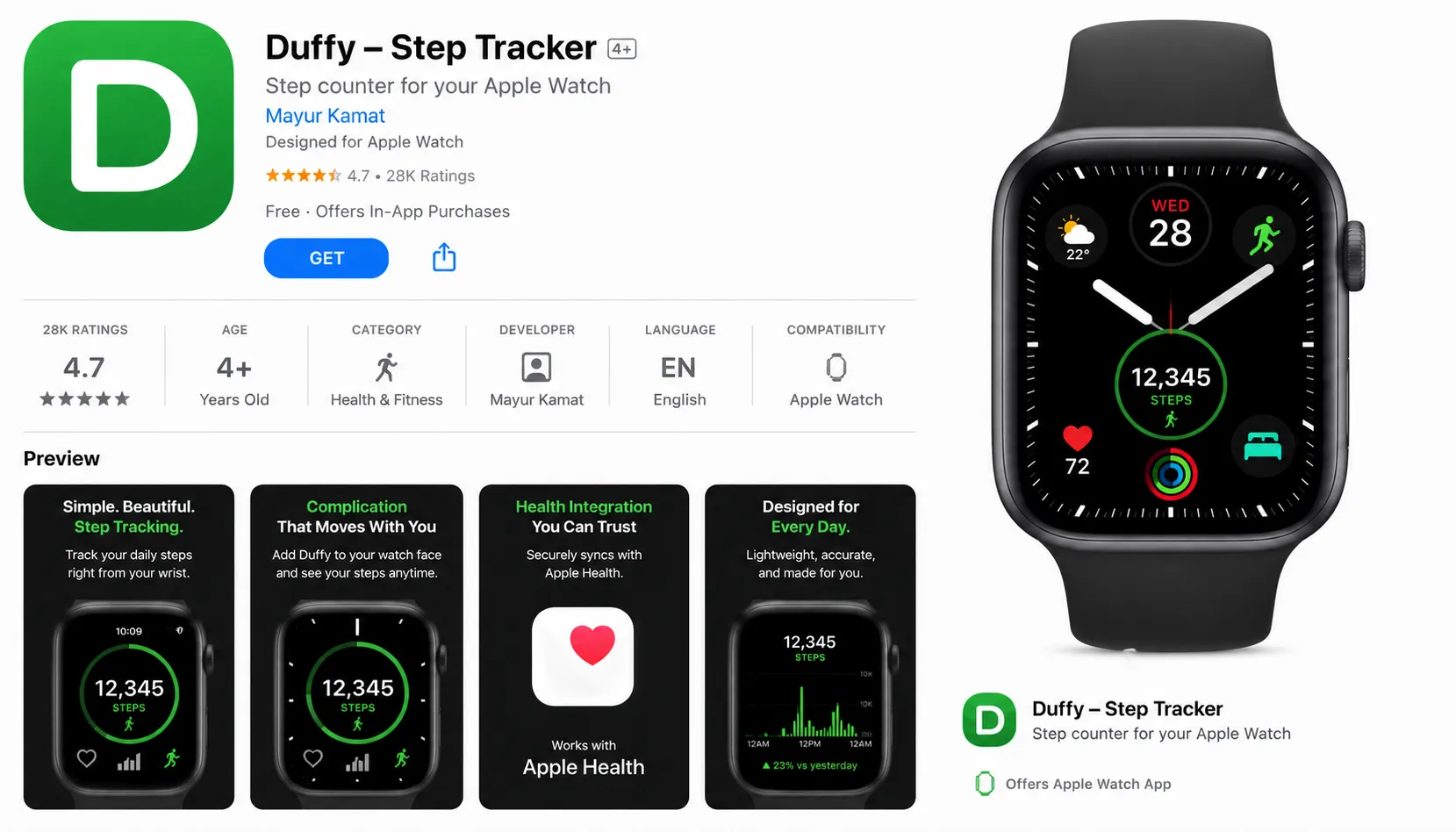
- Duffy – Steps Complication
Duffy’s App Store listing describes it as “quick access to your step count directly on your Apple Watch face as a complication.” It is free, has no ads, and is open, making it especially attractive for users who just want a simple, trustworthy steps readout without subscription friction. - Other pedometer apps with complications
Threads and guides mention that apps like Pedometer++ and some fitness trackers also offer steps complications, though availability can depend on your region and watchOS version, and some users report that these complications occasionally fail to appear in certain faces. - Stridekick and tutorial‑style guides
Wearable‑focused sites such as Stridekick explicitly recommend Duffy as a straightforward way to show daily steps on the face, highlighting that once installed, you simply add Duffy as a complication and the watch face will show your Health‑backed step count.
If your main goal is a clean step number, Duffy tends to be the easiest recommendation: it plugs directly into Apple Health, maps one metric to one complication, and focuses on keeping that number accurate and readable. For AI Tech Unboxed readers comparing multiple options, starting with Duffy, then testing alternative pedometer apps if you want extra visuals or stats, is usually the most efficient workflow.
Troubleshooting: When Apple Watch Steps on Watch Face Don’t Update
Even after setting up a steps complication, some users notice that the displayed number appears stuck or behind the actual steps counted in Health or Activity. Guides and community threads point to a few common causes: missing permissions, the app not being properly installed on the watch, background refresh issues, or Health syncing data from the wrong source.
Try these fixes if your step complication isn’t updating correctly:
- Recheck Health and Motion permissions
Open the steps app on your iPhone and confirm that it still has permission to read Step Count and other activity metrics from Apple Health; if you accidentally denied or revoked access, the complication will show outdated or zero steps. - Verify installation on Apple Watch, not just iPhone
In the Watch app, make sure the steps app is listed under “Installed on Apple Watch.” Some users report that they installed apps on their phones without enabling the watch app, which prevents complications from appearing or functioning. - Tap the complication to open the app and refresh
Duffy and similar apps rely on background refresh, but tapping the complication to open the app on the watch usually forces an immediate sync from Health, helping the number catch up after periods of inactivity. - Toggle the app or reinstall the watch component
If the complication disappears or refuses to update at all, uninstall the watch app from the Watch app, then reinstall it. Some users have reported that doing this once restores the missing steps complication list. - Check Background App Refresh and related system settings
Ensure Background App Refresh is enabled for your steps app as recommended; turning it off can slow down or block automatic updates to complications.
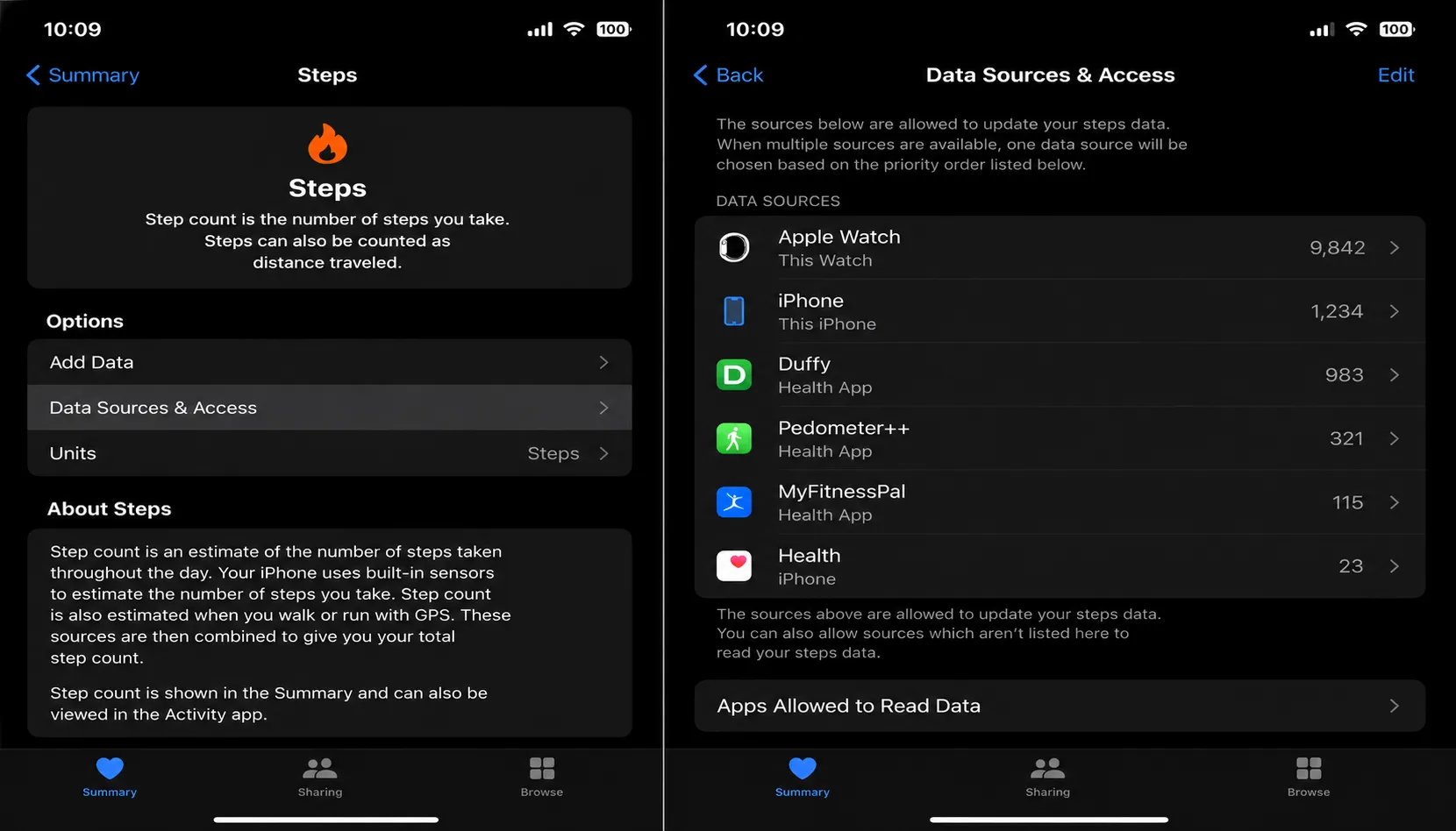
If you still see odd numbers after these checks, the root cause is often Apple Health’s data source priority, which can blend steps from your iPhone and multiple watches, causing totals that don’t match what you expect from your current device.
How Apple Health Data and Data Sources Affect Your Step Complication
Most step complications rely on Apple Health as their source of truth, which means the number you see on your Apple Watch face is only as accurate as the underlying Health configuration and data‑source order. Apple Health can merge activity information from several devices—your iPhone, multiple Apple Watches, and even third‑party accessories—so if the wrong device is prioritized, your step count may lag, double‑count, or seem inconsistent with what your current watch is recording.
To optimize Apple Health for watch‑centric step tracking:
- Open the Health app on your iPhone and tap “Steps” to view details.
- Scroll down to Data Sources & Access and review the list of devices contributing step data.
- Use the Edit option to drag your current Apple Watch to the top of the data sources list, making it the primary source for step counts.
Once your Apple Watch is prioritized, the steps complication will pull data that better reflects watch‑based movement rather than a blended phone‑and‑watch mix. This change is especially important if you often leave your iPhone on a desk while walking with your watch, or if you previously used older watches that still appear as sources inside Health. A clean data‑source order means fewer surprises in your daily step totals and more consistent numbers across Activity, Fitness, and third‑party complications.
Apple Fitness vs Third‑Party Apps for Steps on the Face
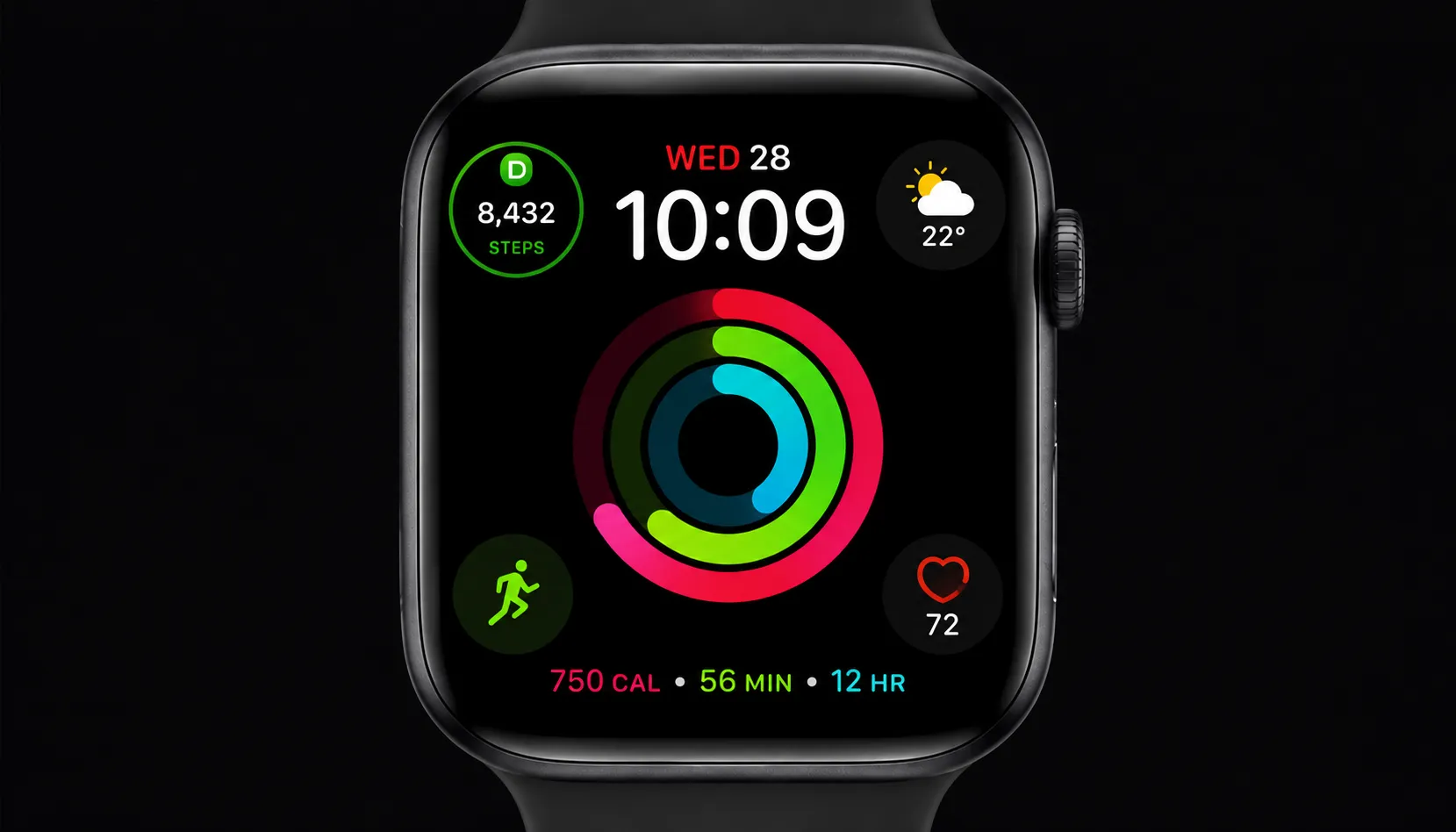
Apple’s own Fitness ecosystem—Activity rings, workouts, and summary views—does an excellent job of tracking overall movement, calories, and exercise minutes. However, it still lacks a native “steps only” complication that shows a simple number on the watch face, which is why communities and tutorials consistently recommend third‑party apps when the requirement is specifically “Apple Watch steps on watch face.”
A practical way to decide between Apple’s tools and external apps is:
- Use Activity complications for broad movement insights
The Activity complication shows your rings in a clean, glanceable format, which is perfect for understanding how close you are to daily Move, Exercise, and Stand goals. - Add a third‑party steps complication for exact numbers
Duffy’s steps complication pulls the same underlying Health data, but exposes it as a precise numeric total that many walkers and step‑challenge participants prefer.
Having both on the same face turns your Apple Watch into a mini health dashboard: rings for progress at a glance, steps for hard numbers, and other complications for weather, heart rate, or workouts. For AI Tech Unboxed readers, this hybrid approach is ideal because you keep Apple’s polished Activity experience while layering on the one metric Apple doesn’t natively show on the face.
Extra Tips to Make Your Apple Watch Face a Daily Fitness Hub
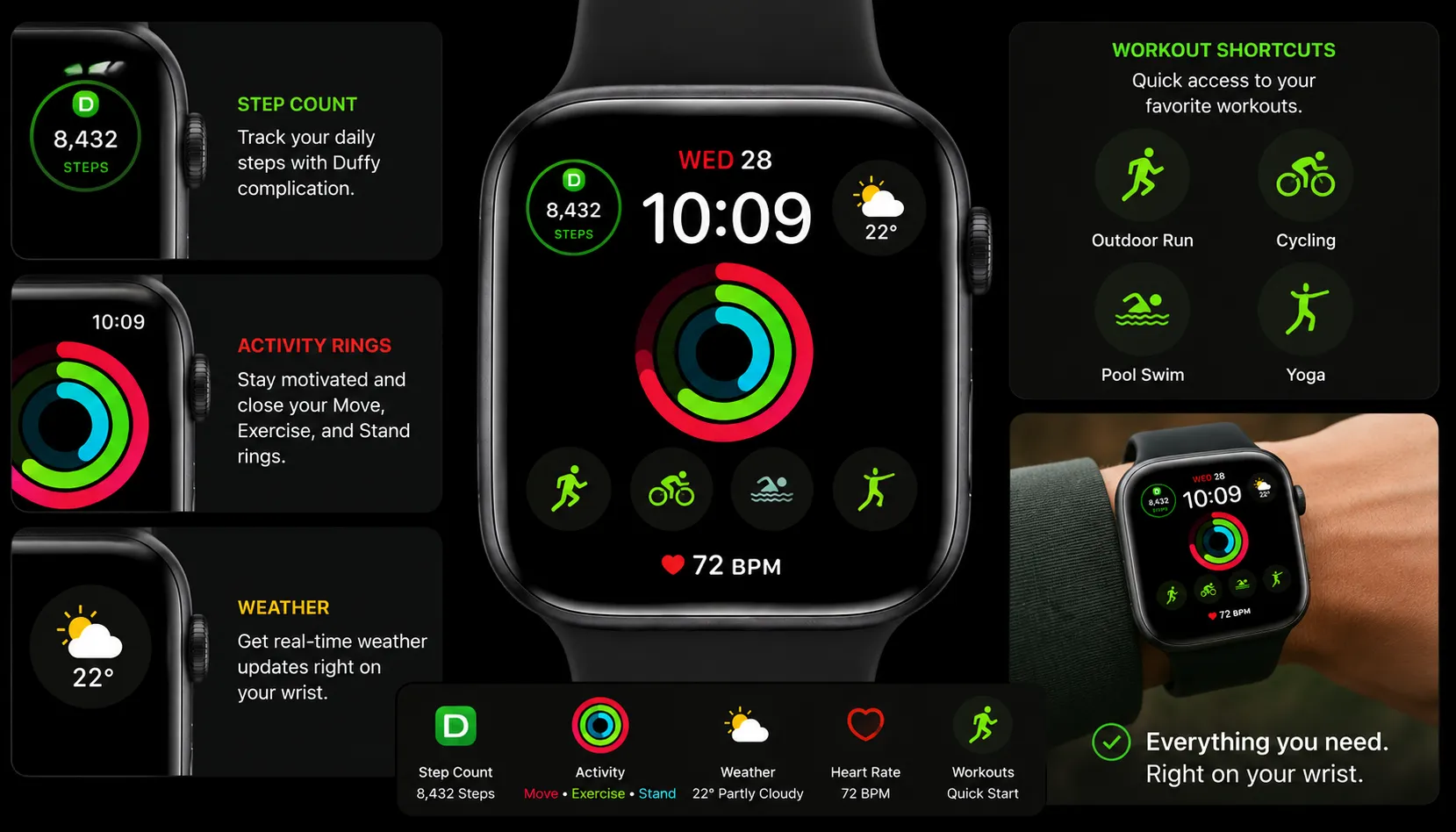
Once your steps are visible, it makes sense to turn the entire Apple Watch face into a compact control center for your daily movement and habits rather than just a decorative screen. Apple’s complication system supports a mix of quick‑glance tools, so a few layout tweaks can significantly improve your fitness experience throughout the day.
Consider these optimization ideas:
- Pair your step complication with Activity rings
Put Activity in the largest or most prominent slot, then place steps in a secondary slot so you always see both “how close to goals” and “exact step count” at a glance. - Add Weather or UV Index if you walk outdoors
A simple weather or UV complication saves you from opening apps before each walk, making it easier to avoid extreme conditions and plan outdoor sessions intelligently. - Include Timer or Workout shortcuts for walks
A one‑tap Workout complication or timer lets you start tracking walks, intervals, or runs without hunting through menus, which helps improve consistency in workout logging. - Use large data areas for numeric metrics
On faces like Infograph Modular, assign your steps complication to a larger panel instead of a tiny corner; big numbers are easier to read quickly, especially when you’re moving.
If you also use other Apple devices—such as iPhone or upcoming smart glasses—this kind of watch face design builds a stronger ecosystem: your watch becomes the quick‑glance health hub, while your phone handles detailed analysis and your other gadgets extend the experience.
Who Should Use This Steps Complication Guide
Fitness-focused Apple Watch owners in India who walk daily for step challenges or Cult.fit and Fitbit-style group goals will benefit most from a dedicated steps complication, since it removes the need to open Fitness or Health repeatedly. Users who recently switched from Android wearables and are used to seeing a numeric step count natively may find this setup essential to replicate that experience on Apple Watch. If you only check your Activity rings once or twice a day, a full steps complication setup is optional — the built-in rings already show progress at a glance. Anyone dealing with syncing issues after using both an iPhone and multiple Apple Watches (common in households sharing devices) should prioritize the Health data-source fix explained above before installing any third-party steps app.
FAQs: Display Steps on Apple Watch Face
Q1. Does Apple provide a built‑in steps complication for the watch face?
No. Apple’s built‑in complications cover Activity rings, heart rate, timers, and more, but there is no native “Steps” complication, which is why third‑party apps like Duffy are widely recommended for this purpose.
Q2. Will Duffy show the same step count as Apple Health and Activity rings?
Yes. Duffy reads step data directly from Apple Health, and users report that the complication shows the same counts as Health and Activity, with updates occurring periodically or when you tap to refresh.
Q3. Can I use any watch face to display steps?
No. Only faces that support complications can show steps via third‑party apps; minimalist faces with no or few complication slots won’t allow you to place a steps complication prominently.
Q4. Why is my steps complication not updating even though Health shows the right number?
Common causes include missing Health permissions, the app not being installed on the watch, Background App Refresh being disabled, or Apple Health prioritizing the wrong device as the step source; fixing these usually restores accurate updates.
Q5. Should I rely only on Apple’s Activity rings or use a steps app as well?
For most users, the best experience comes from combining both: Activity rings for overall movement goals and a steps complication like Duffy for exact counts, all visible on the same face.
Conclusion: The Easiest Way to See Steps on Apple Watch Face
If your goal is to see steps directly on your Apple Watch face without digging through menus, the most reliable and user‑friendly solution in 2026 is to pair a complication‑enabled watch face with a third‑party steps app like Duffy that reads Apple Health data and exposes a dedicated steps complication. Apple’s own ecosystem remains excellent for Activity rings, workouts and heart rate, but the simple step total that many walkers want is still best delivered through an external app that plugs into Health and lives in one of your complication slots.[support.apple]
Once you configure the right watch face, assign the steps complication, and clean up Apple Health’s data sources, your Apple Watch becomes a powerful, glanceable fitness companion: time, rings, steps, weather, and workouts all in one glance, customized to your daily routine instead of hidden across multiple apps. For more Apple Watch face tips, wearable guides, and AI‑powered gadget insights, keep exploring the Apple and gadgets section on AI Tech Unboxed and follow Ai Tech Unboxed for more Apple, AI, and tech updates.